Veo 3 Prompt-Generator

Wandle eine Idee, Szenennotiz oder einen groben Prompt in einen strukturierten Veo 3 Prompt mit Kamerabewegung, Motion, Stil, Audio-Hinweisen, Dauer und optionaler JSON-Ausgabe um.

Veo 3 Prompt-BuilderOhne Anmeldung10 Gratis-Nutzungen pro TagShot-Aufschlüsselung
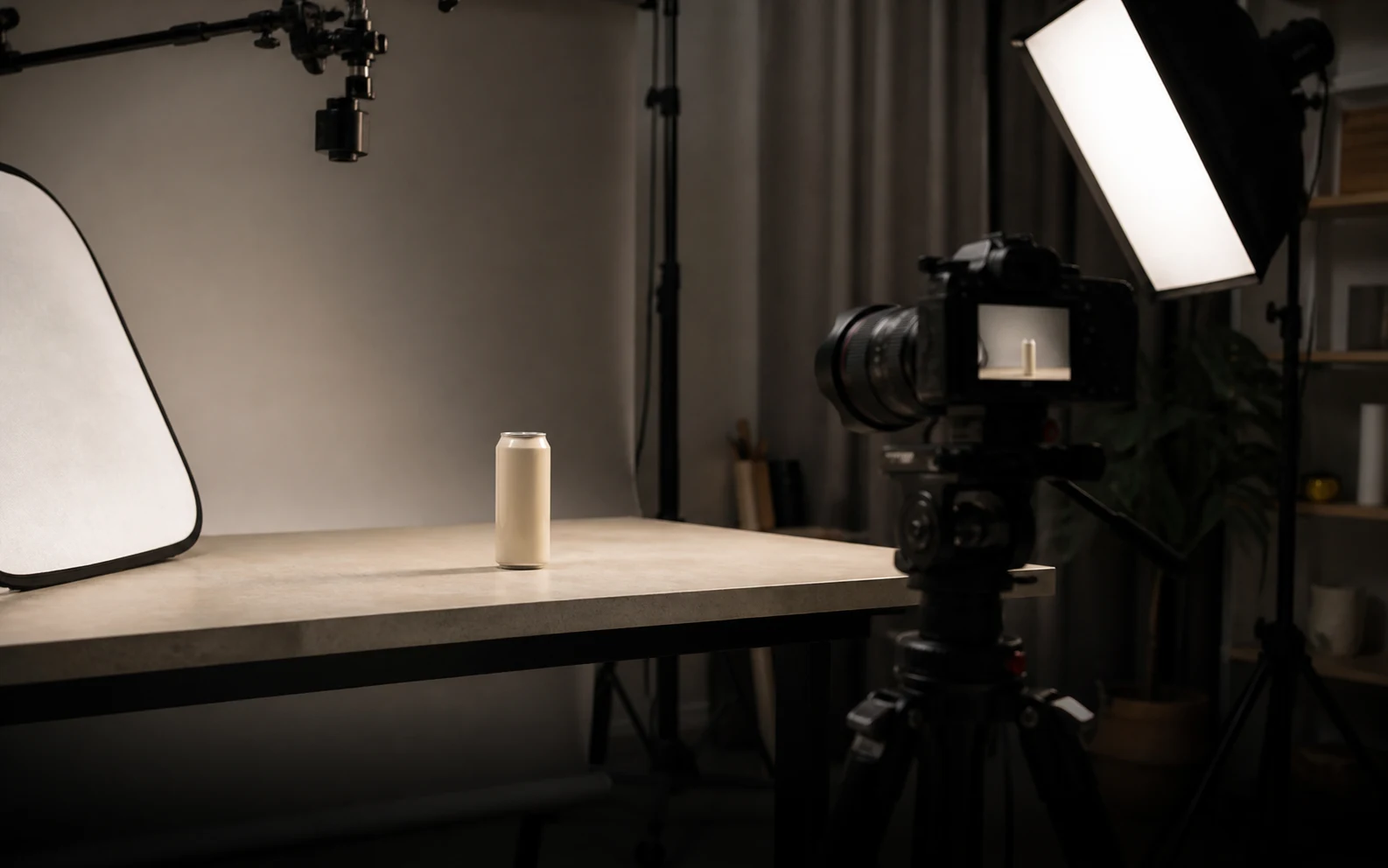
Realistisches Produktvideo-Shooting-Cover für den Veo 3 Prompt-Generator

Veo 3 Prompt erstellen

Nenne Motiv, Handlung, Stil, Kamera, Audio und bekannte Vorgaben.173 / 1200

Only use videos, links, briefs, and brand material that you own, are authorized to analyze, or can lawfully reference. Do not use generated prompts to impersonate creators, copy protected work, or misrepresent a brand.

Veo 3 Prompt-Beispiel testen

Generierter Veo 3 Prompt

Veo 3 Prompt-Beispiele und Ergebnisse

Diese Beispiele zeigen, was der Generator erzeugen kann, bevor du deine eigene Idee eingibst. Es sind öffentliche Beispiele, keine privaten Nutzerausgaben.

Brand Hero

AirPods Pro 3 Produktlaunch-Referenz

Eine polierte Produktlaunch-Referenz wird zu einem Veo 3 Prompt mit klaren Produktdetails, schneller Lifestyle-Energie, sauberem Brand-Framing und finalem Hero-Moment.

Auf YouTube ansehen

Generierter Veo 3 Prompt

Veo 3 video prompt

Create an 8-second video prompt for Veo 3 based on this creative brief: 8-second brand hero film for AirPods Pro 3, with sleek white product close-ups, active lifestyle movement, clean Apple-style staging, premium highlights, synchronized sound cues, and a stable final product reveal.

Settings:
Aspect ratio: 16:9
Duration: 8 seconds
Scene focus: Single continuous scene with one clear subject-action arc.
Reference URL: https://www.youtube.com/watch?v=sjiU1kWgpJ8

Core prompt elements:
Subject: Infer the main subject from the creative brief and keep the same identity, product, place, or character consistent across the clip.
Action: Infer one clear action or transformation from the creative brief and build every beat around that action.
Style: Product commercial
Camera positioning and motion: Eye-level camera positioning with Tracking shot camera movement.
Composition: Product hero frame
Focus and lens effects: Macro lens
Ambiance: Bright studio

Creative direction:
Expand missing details only when they support the creative brief. Keep the scene focused, preserve clear motion continuity, and make every frame readable on mobile and desktop.

Shot 1:
Open inside the single scene with a strong frame that introduces the subject, setting, lighting, and immediate viewer hook.

Shot 2:
Move into the key action. Emphasize texture, gesture, pace, and the main visual transformation described or implied by the brief.

Shot 3:
End with a clean hero moment, clear composition, stable focus, and enough caption room or call-to-action space if useful.

Audio:
Dialogue: Add spoken lines only when the brief explicitly asks for dialogue; otherwise rely on visual performance and nonverbal audio cues.
SFX: Specify close, scene-specific sound effects such as product handling, footsteps, cloth movement, transitions, or interface sounds.
Ambient noise: Specify the environmental bed, room tone, crowd texture, weather, street sound, or natural background noise.

Unwanted elements:
warped hands, distorted faces, unreadable text, flicker, jump cuts, extra limbs, unstable logos, muddy lighting, over-sharpening, inconsistent product details
UGC

Starke UGC-Anzeigenreferenz

Eine creator-geführte Anzeigenreferenz wird zu einem vertikalen Veo 3 Prompt mit schnellem Hook, Handheld-Framing, Produktbeweis, natürlicher Ansprache und caption-sicherer Komposition.

Auf YouTube ansehen

Generierter Veo 3 Prompt

Veo 3 video prompt

Create an 8-second video prompt for Veo 3 based on this creative brief: 8-second vertical UGC product ad with a creator speaking directly to camera, fast first-line hook, casual handheld phone framing, quick product close-up, authentic reaction, natural room tone, and a simple final callout.

Settings:
Aspect ratio: 9:16
Duration: 8 seconds
Scene focus: Single continuous scene with one clear subject-action arc.
Reference URL: https://www.youtube.com/watch?v=uZAzQbJnN68

Core prompt elements:
Subject: Infer the main subject from the creative brief and keep the same identity, product, place, or character consistent across the clip.
Action: Infer one clear action or transformation from the creative brief and build every beat around that action.
Style: UGC handheld
Camera positioning and motion: Eye-level camera positioning with Handheld camera movement.
Composition: Single subject
Focus and lens effects: Shallow focus
Ambiance: Warm natural light

Creative direction:
Expand missing details only when they support the creative brief. Keep the scene focused, preserve clear motion continuity, and make every frame readable on mobile and desktop.

Shot 1:
Open inside the single scene with a strong frame that introduces the subject, setting, lighting, and immediate viewer hook.

Shot 2:
Move into the key action. Emphasize texture, gesture, pace, and the main visual transformation described or implied by the brief.

Shot 3:
End with a clean hero moment, clear composition, stable focus, and enough caption room or call-to-action space if useful.

Audio:
Dialogue: Add spoken lines only when the brief explicitly asks for dialogue; otherwise rely on visual performance and nonverbal audio cues.
SFX: Specify close, scene-specific sound effects such as product handling, footsteps, cloth movement, transitions, or interface sounds.
Ambient noise: Specify the environmental bed, room tone, crowd texture, weather, street sound, or natural background noise.

Unwanted elements:
warped hands, distorted faces, unreadable text, flicker, jump cuts, extra limbs, unstable logos, muddy lighting, over-sharpening, inconsistent product details
3D-Animation

Big Buck Bunny 3D-Animationsreferenz

Eine 3D-Kurzfilmreferenz wird zu einem Veo 3 Prompt mit expressiver Figurenbewegung, lesbarer Waldinszenierung, hellem stilisierten Licht und spielerischen Actionbeats.

Auf YouTube ansehen

Generierter Veo 3 Prompt

Veo 3 video prompt

Create an 8-second video prompt for Veo 3 based on this creative brief: 8-second 3D animated forest scene inspired by Big Buck Bunny, with a gentle oversized rabbit, colorful woodland setting, expressive character timing, playful physical comedy, bright daylight, and a clean animated final pose.

Settings:
Aspect ratio: 16:9
Duration: 8 seconds
Scene focus: Single continuous scene with one clear subject-action arc.
Reference URL: https://www.youtube.com/watch?v=aqz-KE-bpKQ

Core prompt elements:
Subject: Infer the main subject from the creative brief and keep the same identity, product, place, or character consistent across the clip.
Action: Infer one clear action or transformation from the creative brief and build every beat around that action.
Style: Animated
Camera positioning and motion: Eye-level camera positioning with Slow push-in camera movement.
Composition: Wide shot
Focus and lens effects: Deep focus
Ambiance: Golden hour

Creative direction:
Expand missing details only when they support the creative brief. Keep the scene focused, preserve clear motion continuity, and make every frame readable on mobile and desktop.

Shot 1:
Open inside the single scene with a strong frame that introduces the subject, setting, lighting, and immediate viewer hook.

Shot 2:
Move into the key action. Emphasize texture, gesture, pace, and the main visual transformation described or implied by the brief.

Shot 3:
End with a clean hero moment, clear composition, stable focus, and enough caption room or call-to-action space if useful.

Audio:
Dialogue: Add spoken lines only when the brief explicitly asks for dialogue; otherwise rely on visual performance and nonverbal audio cues.
SFX: Specify close, scene-specific sound effects such as product handling, footsteps, cloth movement, transitions, or interface sounds.
Ambient noise: Specify the environmental bed, room tone, crowd texture, weather, street sound, or natural background noise.

Unwanted elements:
warped hands, distorted faces, unreadable text, flicker, jump cuts, extra limbs, unstable logos, muddy lighting, over-sharpening, inconsistent product details
KI-Drama

The Butterfly KI-Drama-Referenz

Eine KI-Story-Referenz wird zu einem Veo 3 Drama-Prompt mit symbolischem Schmetterlingsmotiv, emotionalen Nahaufnahmen, düsterer Atmosphäre, filmischem Timing und zurückhaltenden Dialoghinweisen.

Auf YouTube ansehen

Generierter Veo 3 Prompt

Veo 3 video prompt

Create an 8-second video prompt for Veo 3 based on this creative brief: 8-second cinematic AI drama scene with a lone character encountering a glowing butterfly, emotional close-up, slow reveal, soft atmospheric particles, restrained dialogue or breath, and a poetic final frame.

Settings:
Aspect ratio: 16:9
Duration: 8 seconds
Scene focus: Single continuous scene with one clear subject-action arc.
Reference URL: https://www.youtube.com/watch?v=Afs16GbFgfw

Core prompt elements:
Subject: Infer the main subject from the creative brief and keep the same identity, product, place, or character consistent across the clip.
Action: Infer one clear action or transformation from the creative brief and build every beat around that action.
Style: Cinematic realistic
Camera positioning and motion: Eye-level camera positioning with Dolly shot camera movement.
Composition: Close-up
Focus and lens effects: Shallow focus
Ambiance: Moody cinematic

Creative direction:
Expand missing details only when they support the creative brief. Keep the scene focused, preserve clear motion continuity, and make every frame readable on mobile and desktop.

Shot 1:
Open inside the single scene with a strong frame that introduces the subject, setting, lighting, and immediate viewer hook.

Shot 2:
Move into the key action. Emphasize texture, gesture, pace, and the main visual transformation described or implied by the brief.

Shot 3:
End with a clean hero moment, clear composition, stable focus, and enough caption room or call-to-action space if useful.

Audio:
Dialogue: Add spoken lines only when the brief explicitly asks for dialogue; otherwise rely on visual performance and nonverbal audio cues.
SFX: Specify close, scene-specific sound effects such as product handling, footsteps, cloth movement, transitions, or interface sounds.
Ambient noise: Specify the environmental bed, room tone, crowd texture, weather, street sound, or natural background noise.

Unwanted elements:
warped hands, distorted faces, unreadable text, flicker, jump cuts, extra limbs, unstable logos, muddy lighting, over-sharpening, inconsistent product details

Was ist ein Veo 3 Prompt-Generator?

Ein Veo 3 Prompt-Generator verwandelt eine grobe Videoidee in strukturierten Prompt-Text, der leichter zu testen, zu kopieren und zu verfeinern ist.

Nutze ihn als Veo 3 Prompt-Builder, Video-Prompt-Generator für Veo 3 oder Veo3 JSON-Prompt-Generator. Er erstellt nur Prompt-Text.

So verwendest du den Veo 3 Prompt-Generator

1

Video beschreiben

Füge deine Idee, einen groben Veo-Prompt, Szenennotizen oder eine öffentliche Referenz-URL ein.

2

Veo-Einstellungen wählen

Wähle Seitenverhältnis, Dauer, Ausgabeformat, visuellen Stil, Kamerabewegung, Audio-Richtung und Guardrails.

3

Prompt generieren

Der Builder ordnet dein Briefing in Szenenführung, Kameranotizen, Audio-Hinweise, Shot-Beats und JSON-fertige Felder.

4

Kopieren, herunterladen oder verfeinern

Kopiere den Prompt, lade TXT oder JSON herunter, passe das Briefing an oder verfeinere weiter.

Funktionen für stärkere Veo 3 Prompts

Der Generator hält die Ausgabe auf Videokontrolle fokussiert: Szene, Bewegung, Kamera, Licht, Audio, Dauer, Format und Qualitätsvorgaben.

Szenenstruktur

Macht aus einer losen Videoidee Startbild, Hauptaktion, Schlussbild und Kontinuitätsregeln.

Kameraführung

Ergänzt Winkel, Bewegung, Bildgröße, Fokus und klare Shot-Sprache.

Audio-Hinweise

Beschreibt Atmosphäre, Dialog, Musik, Soundeffekte und Timing, wenn sie relevant sind.

JSON-Ausgabe

Strukturiert Prompts für Reviews, Automatisierung und wiederholbare Tests.

Qualitätsvorgaben

Hilft, Flackern, deformierte Motive, unlesbare Schrift und instabile Schnitte zu vermeiden.

Schnelles Verfeinern

Ändere Einstellungen, kopiere das Ergebnis und iteriere weiter am Briefing.

Wer nutzt einen Veo 3 Prompt-Generator?

Für Creator, Marketer, Filmemacher, Agenturen und Prompt-Engineers, die klarere Videoanweisungen brauchen.

Creator

Mache aus Ideen klare, testbare Video-Prompts.

Marketing

Übersetze Produktnutzen und Kampagnenwinkel in Video-Prompt-Richtung.

Filmemacher

Skizziere Szene, Kamera, Bewegung und Audio vor der Generierung.

Agenturen

Bereite konsistente Prompts für Kundentests und Varianten vor.

Prompt-Engineers

Normalisiere Veo 3 Prompts für strukturierte Experimente.

Veo 3 Ausgabeformate

Wähle das Format, das am besten zu Review, Modelltest oder Automatisierung passt.

FormatBest forOutput
StandardpromptSchnelles Kopieren in ein VideomodellEin klarer Prompt in Fließtextform.
JSON-PromptAutomatisierte Workflows und ReviewsStrukturierte Felder für Szene, Kamera, Audio und Guardrails.
Shot-AufschlüsselungMehrteilige SequenzenEin kurzer Plan mit Beats, Dauer und Kamerabewegung.

Häufige Fragen

Antworten zu Veo 3 Prompts, JSON, Referenzen, Kosten und kommerzieller Nutzung.

Was macht der Veo 3 Prompt-Generator?

Er verwandelt eine grobe Idee in einen strukturierten Prompt mit Szene, Kamera, Bewegung, Audio, Dauer und optionalen JSON-Feldern.

Kann ich einen JSON-Prompt erzeugen?

Ja. Wähle strukturierte Optionen, um Felder für Szene, Shots, Kamera, Audio, Stil und Guardrails zu erhalten.

Erzeugt das Tool das finale Video?

Nein. Es erstellt nur Prompt-Text. Die finale Generierung passiert in deinem Veo-Workflow.

Welche Dauer sollte ich wählen?

Wähle 4 Sekunden für einen Beat, 6 Sekunden für kurze Aktionen und 8 Sekunden für mehrere klare visuelle Beats.

Kann ich eine Referenz-URL hinzufügen?

Ja. Eine öffentliche Referenz-URL kann helfen, den Prompt an Tonalität, Stil oder Struktur auszurichten.

Ist die Nutzung kostenlos?

Die Seite unterstützt ein kostenloses Tageskontingent und zeigt verbleibende Nutzungen an, wenn Limits gelten.

Warum wirkt mein Prompt zu allgemein?

Gib konkretere Angaben zu Motiv, Handlung, Umgebung, Kamera, Licht, Audio und Schlussbild ein.

Kann ich den Prompt kommerziell nutzen?

Den generierten Text kannst du wiederverwenden; prüfe aber Rechte an Referenzen, Marken, Personen, Claims und Plattformbedingungen.