How to Get Prompt from Video: A Practical Guide
Learn how to turn a video reference into an AI prompt by breaking down scenes, motion, camera, style, and audio without pretending to recover a hidden original prompt.
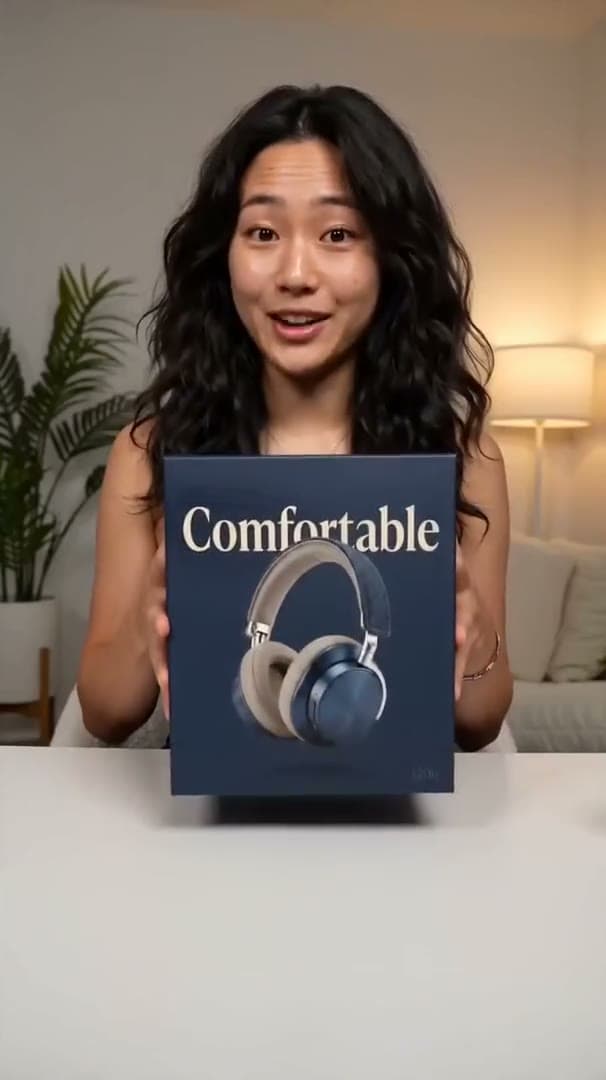
TL;DR: you are recreating a usable prompt, not recovering a hidden one
If you want to know how to get prompt from video, the practical answer is this: describe what the video shows, structure those observations, and turn them into a prompt that can guide a new AI video generation. A finished video usually does not reveal the exact original prompt unless the creator published that prompt somewhere else.
The reliable workflow is to break the video into scenes, capture the subject, action, camera, lighting, style, motion, pacing, and audio cues, then rewrite those notes into a prompt for your target model. VideoBreakdown can help with that structure when you do not want to start from a blank page.
How video-to-prompt extraction works
Video-to-prompt extraction is a reconstruction task. You are not reading a hidden file inside the video; you are translating visible and audible details into clear instructions.
A useful prompt from video should answer a few concrete questions:
- Who or what is the main subject?
- What happens over time?
- Where does the scene take place?
- How does the camera move?
- What lighting, color, and style define the look?
- What should the AI model avoid?
That is why the best result is usually a structured prompt pack, not a single sentence. A single sentence can capture the theme, but it often misses movement, shot order, transitions, and negative prompt details.
What to capture before you write the prompt
Start with observable details. Do not guess the original camera, lens, seed, private model settings, or creator workflow unless those details are visible or publicly provided.
Subject and action
Write down the main subject first, then describe the action. For example, "a creator holds wireless headphones at a desk" is more useful than "tech review style" because it gives the model a concrete subject and behavior.
Add secondary actions only when they matter. A product demo may include a hand picking up the product, a close-up of controls, and a final hero frame. A travel reel may include walking motion, a turn toward the camera, or a reveal of the location.
Scene, camera, and lighting
Next, describe the setting and how the viewer sees it. A good video prompt explains whether the shot is a close-up, overhead view, handheld vlog shot, low-angle tracking shot, or wide establishing shot.
Lighting matters because it often controls the emotional read of the output. Note whether the reference uses soft studio light, bright outdoor daylight, neon night lighting, warm window light, or high-contrast cinematic shadows.
Motion, pacing, and audio
Many weak AI video prompts fail because they describe a still image. Video needs time. Capture subject movement, camera movement, transitions, speed, rhythm, and whether the scene should end on a stable frame.
Audio cues are useful even if your target model does not generate audio directly. A note like "quiet room tone and subtle product handling sounds" can still guide pacing and editing decisions.
Output constraints
Before you generate, decide the format: aspect ratio, duration, platform, model style, prompt length, and whether you need a negative prompt. A vertical social clip, a 16:9 product demo, and a shot-by-shot cinematic sequence need different prompt structures.
How to get prompt from video step by step
This workflow works whether you are doing the analysis manually or using a video to prompt tool.
Step 1: Choose a short reference clip
Use a focused clip instead of a long video when possible. A 10-30 second reference is easier to describe accurately than a full video with many unrelated scenes.
If you are using someone else's video, make sure you are allowed to analyze it and use it as a reference. Do not upload private, restricted, confidential, or rights-sensitive footage to a tool unless the privacy terms fit your use case.
Step 2: Break the video into scene notes
Watch the clip once without writing, then watch it again and pause at each important shot. Capture only what you can observe.
Use this note structure:
- Scene: what is happening in this shot
- Subject: who or what appears
- Action: what changes over time
- Camera: angle, distance, movement, and framing
- Lighting: brightness, direction, color, and contrast
- Style: realistic, cinematic, vlog, product ad, animation, documentary, or another clear look
- Motion: subject movement, camera movement, transition, and pacing
- Audio: speech, music, ambience, or sound effects when relevant
These notes are the bridge between the video and the prompt. They also make it easier to revise the prompt later because you can see which detail is missing.
Step 3: Convert the notes into prompt text
Now turn the notes into a clear prompt. If you are learning how to convert video to prompt, use a fixed framework first:
Create a [duration] [aspect ratio] video of [subject] doing [action] in [setting].
Use [camera angle and camera movement], [lighting], [visual style], and [motion/pacing].
Include [important scene beats or audio cues].
Avoid [negative prompt details].
Here is a filled example:
Create a 10-second 16:9 product demo video of a creator presenting wireless headphones at a clean desk. Use close-up product shots, a gentle push-in camera move, soft studio lighting, realistic hand motion, and calm tech review pacing. Show the creator lifting the headphones, rotating them toward the camera, and ending on a stable product hero frame. Avoid distorted hands, unreadable logos, flicker, harsh shadows, and random jump cuts.This is not the exact original prompt behind the reference video. It is a practical replacement prompt built from visible details.
Step 4: Test, compare, and revise
Generate a short result, then compare it with the reference. Look for mismatches in framing, subject motion, camera movement, lighting, pacing, and scene order.
Revise one layer at a time. If the output has the right subject but the wrong camera, rewrite the camera sentence. If it looks like a still image, add stronger motion and timing. If it copies too much from a reference you do not own, make the scene more original while keeping the useful structure.
How to get prompt from video link
If your search is specifically how to get prompt from video link, the same logic applies, but the input starts with a public URL instead of an uploaded file.
A link-based workflow is useful when the video is public and accessible. For YouTube references, start with the YouTube Video to Prompt Generator. For general reference videos, use the main Video to Prompt Generator.
Link analysis can fail for private, restricted, deleted, region-blocked, or very long videos. When that happens, use a short uploaded clip or paste manual scene notes into the tool. A fallback path is important because the goal is a usable prompt, not a fragile dependency on one URL.
Manual workflow vs using VideoBreakdown
Manual prompt writing gives you full control. It is best when you need to make careful creative decisions, avoid sensitive details, or deliberately change the source concept.
VideoBreakdown is better when you want a structured first draft. It can help organize scene notes into a prompt pack with visual summary, scene breakdown, camera language, lighting, style, motion, and negative prompt guidance. You should still review the result before using it in production.
Use this decision frame:
- Use manual notes when the video is private, sensitive, or legally complex.
- Use VideoBreakdown when you need a faster first draft from a short reference.
- Use the Video Prompt Enhancer when you already have a rough prompt but need clearer motion, camera, and style details.
- Use the Scene Prompt Generator when you only need one focused scene instead of a full video breakdown.
- Use the Free AI Video Prompt Library when you want examples before analyzing a specific clip.
Example video-to-prompt framework
A good framework keeps the prompt readable while still giving the model enough direction.
Use this structure:
- Start with the final task: "Create a 12-second vertical video..."
- Name the subject and action.
- Describe the scene and visual style.
- Add camera movement and shot order.
- Add motion and pacing.
- Add lighting and color.
- Add audio or editing cues when useful.
- Add negative prompt constraints.
For example, a travel reel reference might become:
Create a 12-second vertical travel reel of a creator walking through a narrow old-town street at golden hour. Start with a wide establishing shot, cut to a handheld walking shot from behind, then reveal the creator turning toward the camera near a small cafe. Use warm sunlight, natural motion blur, documentary vlog pacing, soft ambient street sound, and a clean final frame. Avoid over-saturated colors, warped architecture, unstable faces, unreadable text, and random scene jumps.That structure answers the real search intent behind "how to extract prompt from video": it gives you a repeatable way to translate video details into prompt language.
Common mistakes to avoid
Do not write only style words. "Cinematic, viral, high quality" is not enough. Add the subject, scene, action, camera, lighting, and motion.
Do not claim exact prompt recovery unless you actually have the original prompt. If the creator did not publish it, write a replacement prompt based on what the video shows.
Do not ignore movement. AI video prompts need temporal detail: what changes, how fast it changes, and how the shot begins and ends.
Do not copy protected creative elements blindly. Use references responsibly, remove brand-sensitive details when needed, and create your own scene direction.
Do not test a long prompt all at once. Generate a short version first, compare it, then expand.
FAQ
Can you get the exact original prompt from a video?
Usually no. A finished video does not normally expose the exact original prompt. You can create a strong replacement prompt from visible and audible details, but you should not present it as the original prompt unless the creator published the original text.
How do I convert video to prompt?
Break the video into scenes, capture subject, action, camera, lighting, style, motion, pacing, audio, and constraints, then rewrite those notes into a structured AI video prompt.
How do I extract prompt from video manually?
Pause the clip shot by shot. Write down only observable details, organize them into a prompt framework, generate a short test, and revise the prompt based on what does not match.
How do I get a prompt from a video link?
Use a public video URL with a supported tool such as VideoBreakdown or the YouTube Video to Prompt Generator. If the link is private or blocked, upload a short clip or paste manual scene notes instead.
What should a good AI video prompt include?
A good prompt includes subject, action, setting, camera movement, lighting, visual style, motion, pacing, duration, aspect ratio, audio cues when relevant, and negative prompt constraints.
Is video prompt extraction free?
VideoBreakdown is designed around a free public workflow with usage limits. Account features, saved history, higher volume, or team workflows may depend on the product settings available when you use it.
Is it safe to upload a video for prompt extraction?
Use videos you own or are allowed to analyze. Avoid uploading private, confidential, restricted, or rights-sensitive footage unless you have reviewed the tool's privacy terms and the workflow fits your use case.
Can I use a generated prompt commercially?
You can use the generated text, but you are responsible for rights connected to the source video, music, faces, brands, and final generated output. When in doubt, make the new scene more original.
What if the prompt does not match the reference video?
Compare the generated result with the reference and revise the weakest layer first. Most mismatches come from vague camera direction, missing motion, unclear scene order, or style words that are too broad.
Conclusion
Learning how to get prompt from video is really learning how to translate a moving reference into clear creative instructions. Start with observable details, structure them carefully, test a short result, and revise with intent.
When you want a faster starting point, use VideoBreakdown to turn a reference video into a structured prompt pack, then adjust the final wording for your model, rights requirements, and creative goal.