Video Prompt Enhancer

Paste a rough video prompt and turn it into a clearer, more testable version with scene beats, camera movement, subject action, audio direction, style, and optional constraints.

Prompt improverNo sign-up5 free uses dailyCamera and motionAudio direction
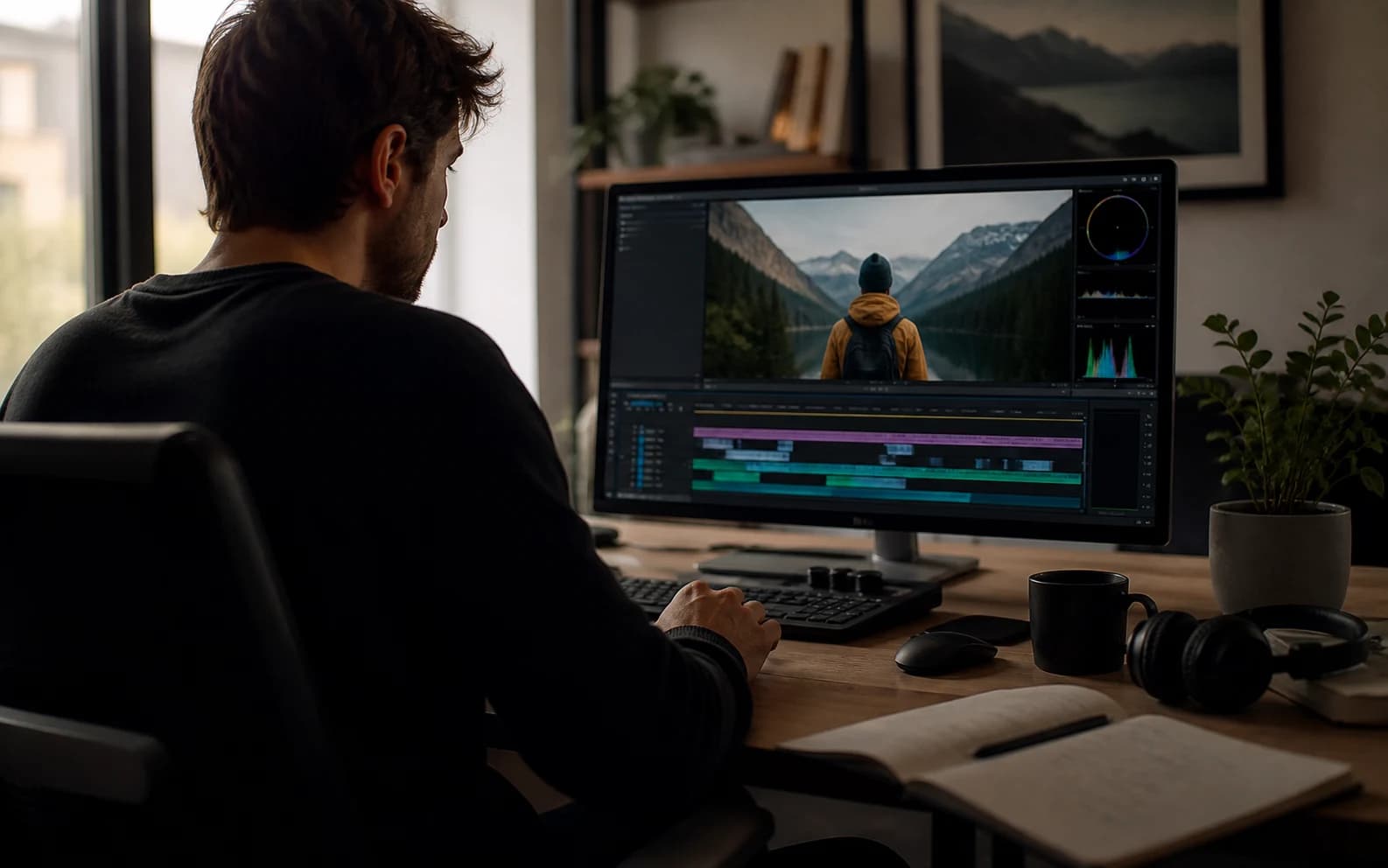
Video prompt enhancer cover showing a cinematic AI video reference

Enhance a video prompt

Include the subject, action, style, camera, audio, and any constraints you already know.0 / 1200

Only use videos, links, briefs, and brand material that you own, are authorized to analyze, or can lawfully reference. Do not use generated prompts to impersonate creators, copy protected work, or misrepresent a brand.

Try templates

Your enhanced prompt

Video prompt enhancer examples

These examples show how thin prompt ideas can become more specific video directions.

AI Drama

NIGHTBORNE sci-fi return scene

A vague sci-fi idea becomes a production-ready prompt with documentary texture, tension, archival monitors, and a controlled reveal.

Watch on YouTube

Enhanced prompt

Original idea: Make an AI sci-fi horror drama about a missing soldier coming back.

Enhanced prompt:
Create a long AI video prompt based on the original idea. Keep the core concept, subject, and intended outcome, but make the prompt more specific, visual, and testable. Use the reference as visual guidance without copying irrelevant details: https://www.youtube.com/watch?v=8Wbtt2JxP7g.

Scene and subject:
State the main subject, setting, time of day, visible action, emotional tone, important props, and the first thing viewers should notice.

Motion and pacing:
Describe how the action develops from opening frame to final frame. Use concrete movement, timing, cause and effect, and a clear visual payoff.

Camera direction:
Use Slow dolly push with medium close-up with stable framing, readable focus, and camera movement that supports the main action.

Lighting and style:
Use a coherent visual style with controlled light, color, contrast, texture, and atmosphere. Match the detail level to Cinematic output.

Audio direction:
Room tone with natural dialogue pauses

Constraints:
Keep the subject consistent, avoid unrelated visual additions, make the final frame clear, and leave safe composition space when captions or UI overlays may be added.

Negative prompt:
Avoid vague action, unstable subject identity, random scene changes, warped anatomy, unreadable text, logo drift, flicker, smeared motion, muddy lighting, oversaturated color, and audio that does not match the visible action.
AI Drama

Voicemail memory drama

A thin emotional prompt becomes a more cinematic memory piece with surreal transitions, isolation, voiceover mood, and restrained motion.

Watch on YouTube

Enhanced prompt

Original idea: Make a sad AI video about a person leaving a voicemail and remembering someone.

Enhanced prompt:
Create a long AI video prompt based on the original idea. Keep the core concept, subject, and intended outcome, but make the prompt more specific, visual, and testable. Use the reference as visual guidance without copying irrelevant details: https://www.youtube.com/watch?v=1TlY7jkyqz4.

Scene and subject:
State the main subject, setting, time of day, visible action, emotional tone, important props, and the first thing viewers should notice.

Motion and pacing:
Describe how the action develops from opening frame to final frame. Use concrete movement, timing, cause and effect, and a clear visual payoff.

Camera direction:
Use Handheld tracking with natural sway with stable framing, readable focus, and camera movement that supports the main action.

Lighting and style:
Use a coherent visual style with controlled light, color, contrast, texture, and atmosphere. Match the detail level to Cinematic output.

Audio direction:
Room tone with natural dialogue pauses

Constraints:
Keep the subject consistent, avoid unrelated visual additions, make the final frame clear, and leave safe composition space when captions or UI overlays may be added.

Negative prompt:
Avoid vague action, unstable subject identity, random scene changes, warped anatomy, unreadable text, logo drift, flicker, smeared motion, muddy lighting, oversaturated color, and audio that does not match the visible action.
Brand Hero

Galaxy Watch outdoor brand film

A short product note becomes a polished brand prompt with athlete action, macro product detail, crisp light, and final-frame control.

Watch on YouTube

Enhanced prompt

Original idea: Make a premium smartwatch ad with outdoor action and close-ups.

Enhanced prompt:
Create a medium AI video prompt based on the original idea. Keep the core concept, subject, and intended outcome, but make the prompt more specific, visual, and testable. Use the reference as visual guidance without copying irrelevant details: https://www.youtube.com/watch?v=VHxyW2zwwgU.

Scene and subject:
State the main subject, setting, time of day, visible action, emotional tone, important props, and the first thing viewers should notice.

Motion and pacing:
Describe how the action develops from opening frame to final frame. Use concrete movement, timing, cause and effect, and a clear visual payoff.

Camera direction:
Use Macro push-in with stable hero framing with stable framing, readable focus, and camera movement that supports the main action.

Lighting and style:
Use a coherent visual style with controlled light, color, contrast, texture, and atmosphere. Match the detail level to Detailed output.

Audio direction:
Subtle studio ambience and soft mechanical clicks

Constraints:
Keep the subject consistent, avoid unrelated visual additions, make the final frame clear, and leave safe composition space when captions or UI overlays may be added.

Negative prompt:
Avoid vague action, unstable subject identity, random scene changes, warped anatomy, unreadable text, logo drift, flicker, smeared motion, muddy lighting, oversaturated color, and audio that does not match the visible action.

What is a video prompt enhancer?

A video prompt enhancer rewrites a rough idea into a more specific AI video prompt with visible scene direction.

Use it when a prompt feels too vague and needs clearer subject, action, camera, lighting, style, audio, duration, and constraints.

How to enhance a video prompt

1

Paste a rough prompt

Start with your current idea, even if it is short or messy.

2

Choose settings

Pick workflow, aspect ratio, duration, style, camera, and mood options.

3

Enhance the prompt

The tool expands missing details while preserving the original idea.

4

Copy or revise

Use the enhanced result directly or keep refining the brief.

Features for stronger video prompts

Refine thin ideas into prompts with clear visual control and fewer ambiguous instructions.

Prompt rewrite

Turns loose wording into a structured, copy-ready video prompt.

Camera and motion

Adds readable camera movement, framing, pacing, and subject action.

Audio direction

Includes ambience, dialogue, sound effects, and rhythm notes when useful.

Before/after clarity

Preserves your idea while adding the missing production details.

Structured output

Supports cleaner prompt fields for repeatable workflows and reviews.

Quality guardrails

Adds constraints for flicker, unstable subjects, bad text, and muddy visuals.

Who uses a video prompt enhancer?

Useful whenever a prompt needs more production detail before testing in an AI video model.

Creators

Make short prompts more specific before generating.

Social teams

Turn rough hooks into clearer vertical video directions.

Agencies

Prepare client-ready prompt drafts from loose notes.

Prompt libraries

Normalize prompt examples for reuse and comparison.

Video ads

Add product, benefit, CTA, camera, and final-frame details.

Frequently asked questions

Answers about prompt enhancement, model support, reference media, JSON output, and commercial use.

What does the video prompt enhancer do?

It rewrites rough video prompt text into a more specific, structured prompt for AI video workflows.

How is it different from a prompt generator?

A generator can start from a blank idea; an enhancer improves prompt text you already have.

Which models can use the result?

The output can be adapted for Sora, Veo, Gemini, Runway, Kling, Seedance, or another video model.

Does it create the final video?

No. It creates prompt text only. Final video generation happens in the model or workflow you use.

Can I add reference media?

You can add a public reference URL as context. For deeper video analysis, use the video-to-prompt tools.

Will it keep my original idea?

Yes. The enhancer preserves the core idea while adding clearer scene, camera, audio, and constraint details.

Can I get JSON output?

Use structured settings and copy the result into the JSON or workflow format you need.

Can I use enhanced prompts commercially?

You can reuse the generated text, but final commercial use depends on rights, claims, source materials, and platform terms.